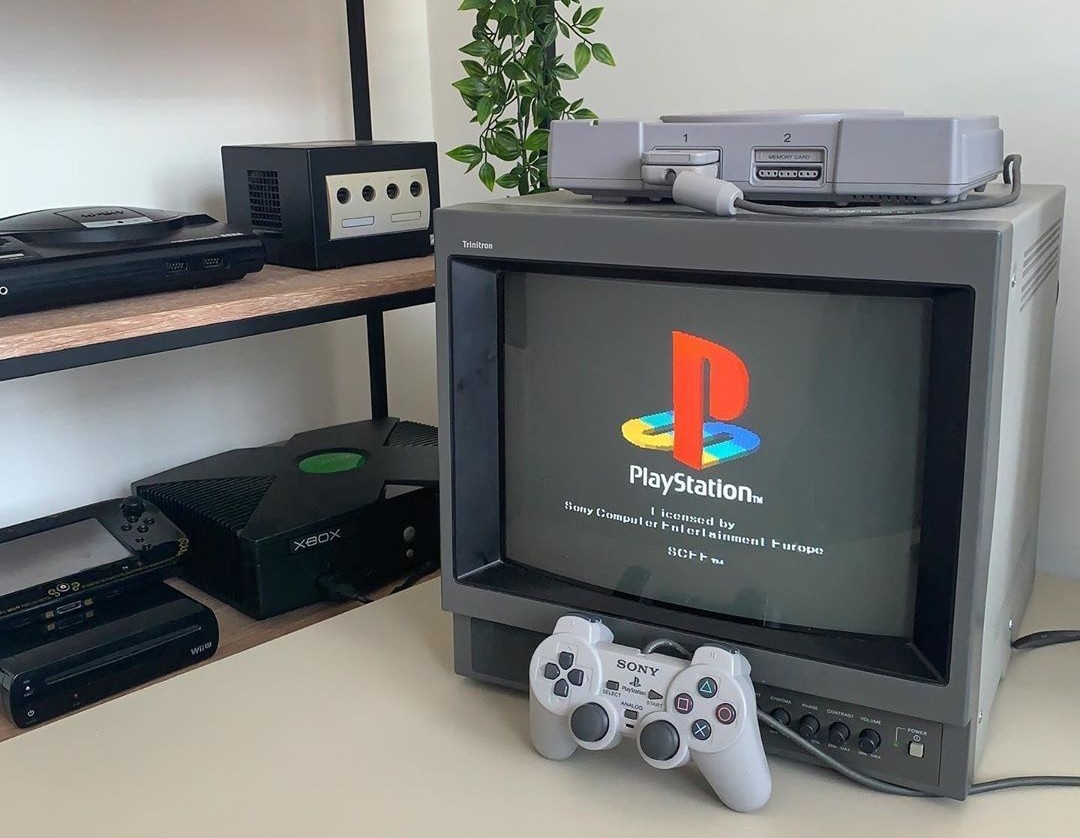
Learning how to connect PS1 to a CRT TV is one of the most rewarding steps you can take in retro gaming – and in 2026, knowing how to connect PS1 to a CRT TV properly makes the difference between a muddy Composite picture and the sharp, vibrant RGB image the PlayStation was designed to output.
The good news is that the PS1 supports multiple output types natively – no mods required – making it one of the easiest retro consoles to get looking great on a CRT straight out of the box.
Whether you are a complete beginner or upgrading from a modern TV, this guide covers everything you need to know about how to connect PS1 to a CRT TV for the best possible picture.
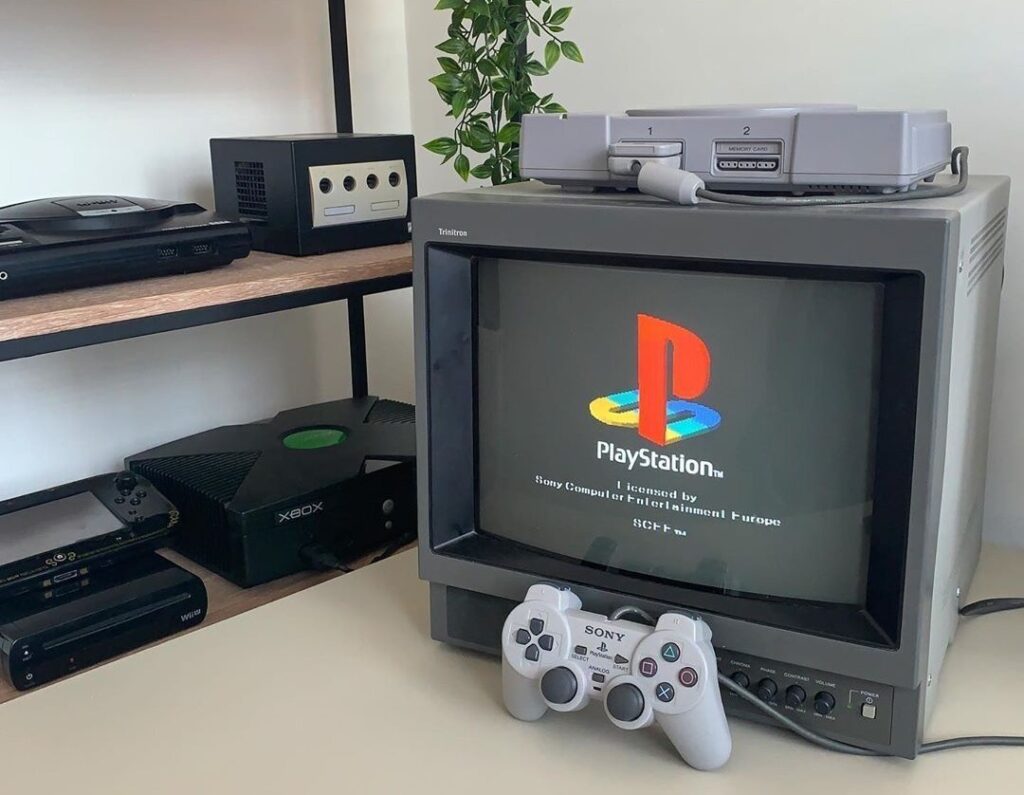
What You Need to Connect PS1 to a CRT TV
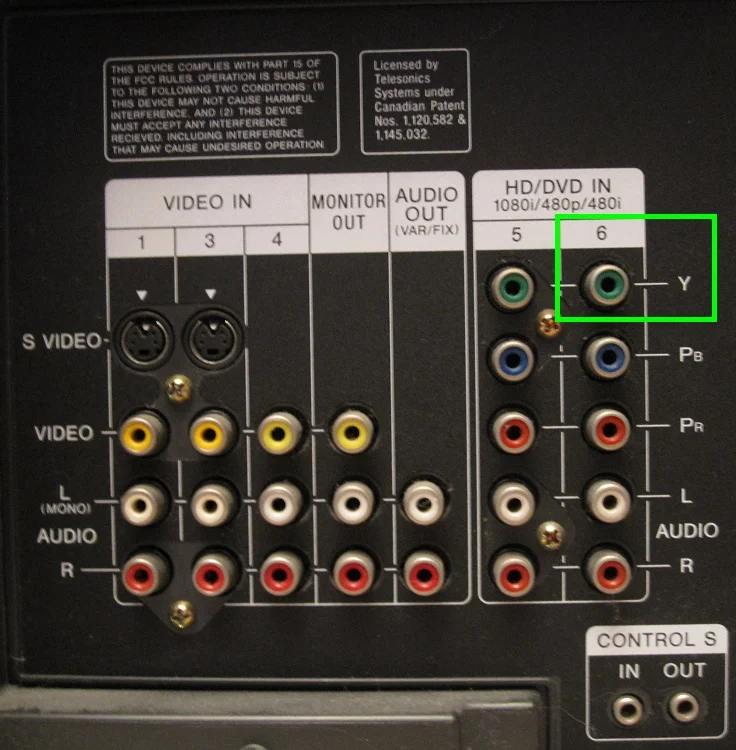
Before getting started, check which outputs your CRT TV supports. Flip it around and look for the following inputs:
- RF input – the circular screw-type connector. Avoid if possible.
- Composite inputs – the yellow, red and white RCA connectors. Found on almost every CRT.
- S-Video input – a small round multi-pin connector, often labelled “S-Video” or “Y/C”.
- SCART input – a large rectangular connector common on European CRT TVs. Supports RGB for the best possible picture.
- Component inputs – three connectors labelled Y, Pb, Pr. Less common on CRTs but found on higher-end consumer sets.
The PS1 connects via a Multi AV connector on the back of the console – the same port used across most PlayStation consoles. All cables for the PS1 plug into this port.
PS1 to CRT TV – Cable Options Compared
| Cable type | Signal quality | PS1 compatible | CRT input needed | Recommended |
|---|---|---|---|---|
| RF | Very poor | Yes | RF aerial input | Avoid |
| Composite (RCA) | Poor–OK | Yes – included in box | Yellow/Red/White RCA | Starting point only |
| S-Video | Good | Yes – native | S-Video port | Good budget upgrade |
| RGB SCART | Excellent | Yes – native | SCART socket | Best for European CRTs |
| Component | Excellent | Yes – native | Component inputs | Best for US CRTs |
How to Connect PS1 to a CRT TV – Step by Step
Option 1: Composite (The Default Setup)
Composite is the cable that came in the box with your PS1 and will work on virtually any CRT TV. It’s not the best signal but it’s a perfectly valid starting point.
- Plug the Multi AV end of the cable into the back of your PS1.
- Plug the yellow RCA connector into the yellow Video input on your CRT.
- Plug the red and white RCA connectors into the red and white Audio inputs.
- Switch your CRT to the correct AV input channel using the TV remote or input button.
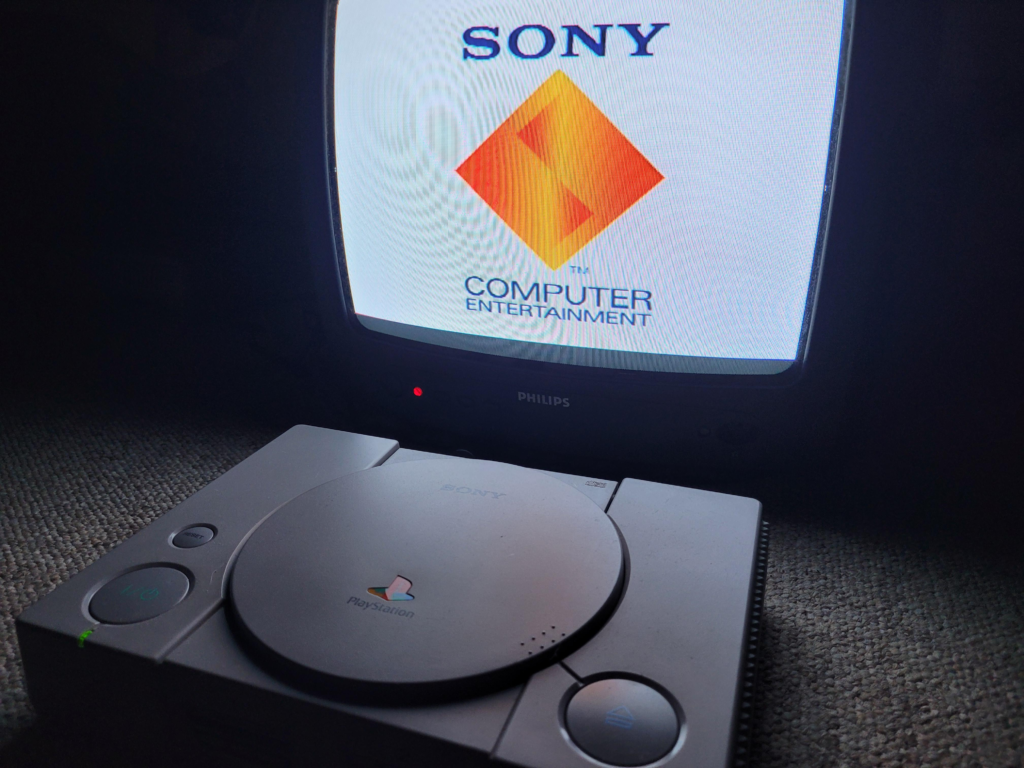
- Power on the PS1 – you should see the PlayStation logo appear on screen.
If you get no picture, cycle through the AV inputs on your CRT using the remote – most CRTs have multiple AV channels and you may need to switch between them to find the right one.
Once you have mastered how to connect PS1 to a CRT TV via Composite, upgrading to S-Video or RGB is a natural next step.
Option 2: S-Video (The Easy Upgrade)
S-Video gives a noticeably sharper and cleaner image than Composite with minimal extra effort. If your CRT has an S-Video port this is the easiest upgrade you can make.
- Purchase a PS1 S-Video cable – search “PS1 S-Video cable” or “PlayStation Multi AV S-Video” on eBay or Amazon. Expect to pay $10–$20.
- Plug the Multi AV end into the back of your PS1.
- Plug the S-Video connector into the S-Video port on your CRT.
- Plug the red and white audio RCA connectors into the audio inputs.
- Switch your CRT to the S-Video input channel and power on the PS1.
The improvement over Composite is immediately obvious – colours are more accurate, the image is sharper, and you’ll notice significantly less dot crawl on fine details and text.
Option 3: RGB SCART (The Best Picture on European CRTs)
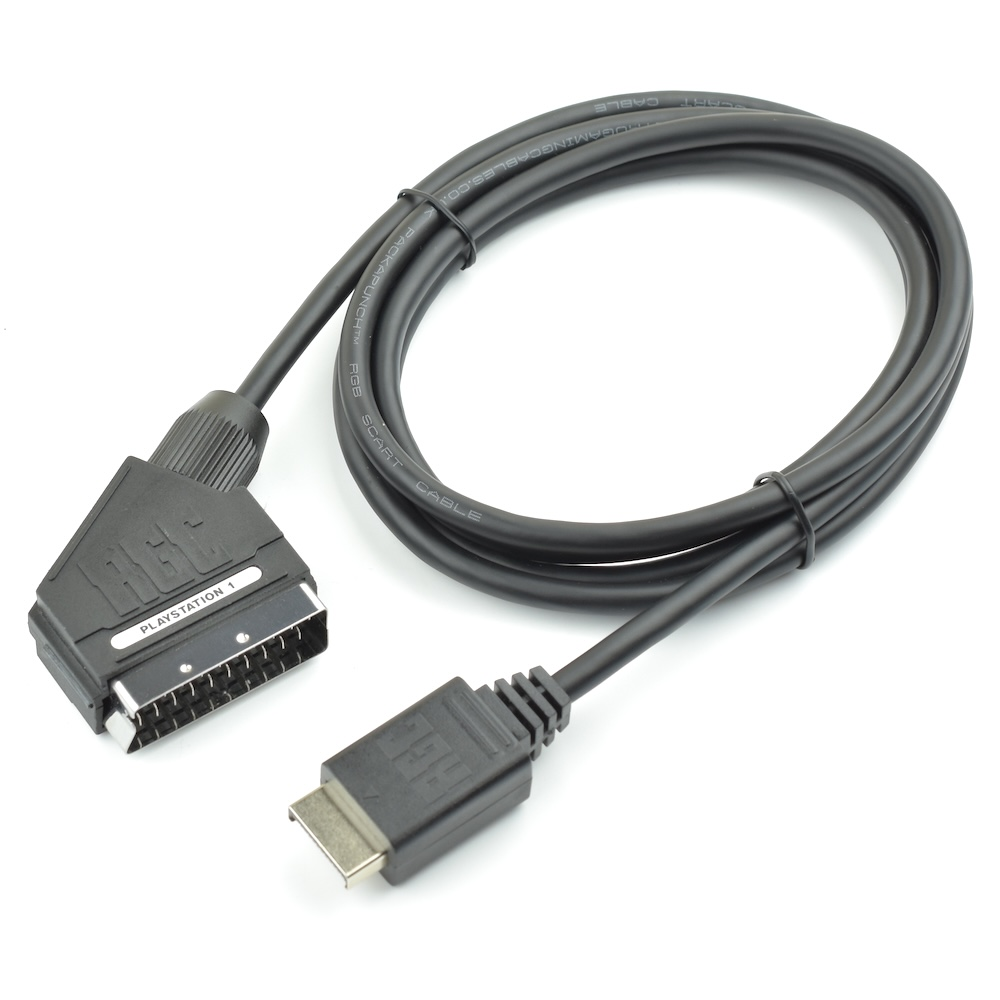
RGB via SCART is the best possible signal you can feed a CRT TV and the PS1 supports it natively. If your CRT has a SCART socket – common on European sets – this is the connection to use.
- Purchase a PS1 RGB SCART cable – search “PS1 RGB SCART cable” on eBay or from specialist retailers like Retro Gaming Cables UK. Budget $20–$40 for a quality cable.
- Plug the Multi AV end into the back of your PS1.
- Plug the SCART connector into the SCART socket on your CRT.
- Switch your CRT to the SCART input – most European CRTs auto-detect SCART and switch automatically.
- Power on the PS1 – the image should appear immediately in full RGB quality.
The difference between RGB SCART and Composite on a CRT is dramatic. Colours are richer, edges are sharper, and fine details in textures and backgrounds that were previously muddy become clear. This is how PS1 games were designed to be seen.
Option 4: Component (The Best Picture on US CRTs)
In North America where SCART was never standard, Component video is the preferred high-quality connection for PS1 on a CRT. Component gives equivalent image quality to RGB and is found on higher-end consumer CRTs from the late 1990s and early 2000s.
- Purchase a PS1 Component cable – search “PS1 Component cable” or “PlayStation YPbPr cable” on eBay. Budget $15–$35.
- Plug the Multi AV end into the back of your PS1.
- Plug the Y (green), Pb (blue), and Pr (red) connectors into the matching Component inputs on your CRT.
- Plug the audio RCA connectors into the audio inputs.
- Switch your CRT to the Component input and power on the PS1.
Troubleshooting – No Picture or Poor Image Quality
If you’re having trouble after following the steps above to connect PS1 to a CRT TV, work through these common fixes before assuming there’s a hardware fault:
- Wrong input selected – cycle through all AV inputs on your CRT using the remote. Many CRTs have AV1, AV2, AV3 and it’s easy to be on the wrong one.
- Cable not fully seated – the Multi AV connector on the PS1 can feel loose. Make sure it’s pushed in firmly.
- Faulty cable – cheap third-party cables are a common culprit for no picture or colour issues. Try a different cable if available.
- CRT input not compatible – not all CRTs support all input types. If your SCART cable isn’t working, check that your CRT’s SCART socket supports RGB rather than just Composite over SCART.
- PS1 AV Multi out issue – the Multi AV port on older PS1 units can become loose with age. Try gently wiggling the cable while powered on to check for a loose connection.
Which PS1 Cable Should You Buy in 2026?
The right cable depends on your CRT:
- European CRT with SCART – buy an RGB SCART cable. This is the best possible setup and a no-brainer if your TV has a SCART socket.
- US CRT with Component inputs – buy a Component cable. Equal image quality to RGB SCART and widely available.
- Any CRT with S-Video – buy an S-Video cable. A significant upgrade over Composite for minimal cost.
- Basic CRT with only Composite – use the cable that came with the PS1. It works fine as a starting point while you hunt for a better CRT.
Whichever cable you choose, knowing how to connect PS1 to a CRT TV correctly makes a bigger difference to image quality than almost any other factor.
Frequently Asked Questions – How to Connect PS1 to CRT TV
These are the most common questions we receive about how to connect PS1 to a CRT TV – answered based on real experience.
Does the PS1 need a special cable to connect to a CRT?
No – the PS1 came with a Composite cable in the box that connects directly to any CRT with RCA inputs. However the PS1 also supports S-Video, RGB SCART, and Component natively, all of which give a significantly better picture. Upgrading your cable is the cheapest and most impactful improvement you can make to your PS1 CRT setup.
What is the best cable for PS1 on a CRT?
RGB SCART is the best cable for PS1 on a European CRT with a SCART socket. For US CRTs without SCART, Component video gives equivalent quality. S-Video is an excellent middle ground that works on most CRTs and gives a noticeably better image than the stock Composite cable.
Can I connect a PS1 to a modern TV instead of a CRT?
Yes, but the experience is notably different. Modern TVs introduce input lag and don’t support 240p natively, which can cause display issues with PS1 games. A RetroTINK 5X upscaler solves most of these problems but adds cost and complexity. For the most authentic PS1 experience, a CRT remains the best display choice in 2026.
Why does my PS1 look blurry on my CRT?
The most common cause is using a Composite cable. Upgrading to S-Video or RGB SCART will immediately sharpen the image. If you’re already using a quality cable and the image is still soft, check your CRT’s sharpness setting – many CRTs have this set too high by default which can cause edge ringing and a blurry appearance.
Do I need to mod my PS1 for CRT gaming?
No – the PS1 outputs S-Video, RGB, and Component natively without any modification. This makes it one of the easiest retro consoles to set up on a CRT. The only mod relevant to CRT gaming is the PS1 RGB cable mod for early SCPH-1000 model PS1s which don’t output RGB by default – but this only affects a small number of early Japanese units. Now that you know how to connect PS1 to a CRT TV, the difference in image quality speaks for itself.
Looking to upgrade your CRT setup further? Check out our guide to the best CRT TVs for retro gaming and our complete CRT cables guide for everything you need to build the perfect PS1 CRT setup.
